Comments/Notes
You can add/edit/delete Comments (in later Excel versions called Notes) either via the ExcelRange class or via the Comments Property on the ExcelWorksheet class.
EPPlus supports Comments/Notes with plain as well as richtext, see examples below.
Classes
ExcelComment
When adding/editing comments you will be working with the OfficeOpenXml.ExcelComment class. Here are the most important properties of this class:
| Property | Datatype | Description |
|---|---|---|
Author |
string |
Author of the comment |
Text |
string |
Plain text of the comment |
RichText |
ExcelRichTextCollection |
Richtext (set Font, Font size/style, Color, etc on the whole text or different parts of it) of the comment, see the Richtext section below |
From |
ExcelVmlDrawingPosition |
From position. For comments only when Visible=true |
To |
ExcelVmlDrawingPosition |
To position. For comments only when Visible=true |
Autofit |
bool |
Autofits the comment |
BackgroundColor |
System.Drawing.Color |
Background color of the comment |
LineStyle |
eLineStyleVml |
Border style |
LineColor |
System.Drawing.Color |
Border color |
LineWidth |
float |
Border width |
ExcelRichTextCollection
Available via the ExcelComment.RichText property, which is of the type OfficeOpenXml.Style.ExcelRichTextCollection.
Properties
| Property | Datatype | Description |
|---|---|---|
Text |
string |
The plain text |
HtmlText |
string |
Returns the rich text as html |
Count |
int |
Number of items in the collection |
Methods
| Method | Return type | Description |
|---|---|---|
Add(string text, bool NewParagraph=false) |
ExcelRichText |
Adds a rich text string to the collection |
Clear() |
void |
Removes all items from the collection |
Remove(ExcelRichText item) |
void |
Removes an item from the collection |
RemoveAt(int index) |
void |
Removes an item from the collection by its index |
Insert(int index, string text) |
ExcelRichText |
Inserts an item into the collection |
this[int index] |
ExcelRichText |
Returns an item by its index |
ExcelRichText
Namespace: OfficeOpenXml.Style
Properties
| Property | Datatype | Description |
|---|---|---|
Text |
string |
The plain text |
HtmlText |
string |
Returns the rich text as html |
Color |
System.Drawing.Color |
Color of the text |
Size |
float |
Size of the font |
Bold |
bool |
If true the text is bold |
Italic |
bool |
If true the text is italic |
Underline |
bool |
If true the text will be underlined |
Strike |
bool |
If true the text will be striked out |
FontName |
string |
Name of the font |
PreserveSpace |
bool |
Preserves whitespace. Default is true |
Examples
Add new comments
using(var package = new ExcelPackage(@"c:\temp\commentstest.xlsx"))
{
    var ws = package.Workbook.Worksheets.Add("comments");
    //Adds comments using the range class
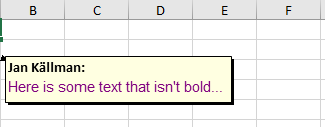
    var comment = ws.Cells["A3"].AddComment("Jan Källman:\r\n", "JK");
    comment.Font.Bold = true;
    var rt = comment.RichText.Add("Here is some text that isn't bold...");
    rt.Bold = false;
    rt.FontName = "Helvetica";
    rt.Color = Color.Purple;
    comment.AutoFit = true;

    //Adds a comment using the worksheet's Comments collection
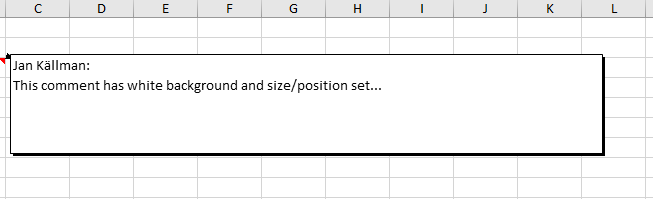
    var comment2 = ws.Comments.Add(ws.Cells["B3"],"Jan Källman:", "JK");

    //This sets the size and position. (The position is used when the comment is visible and AutoFit isn't set to true)
    comment2.From.Column = 7;
    comment2.From.Row = 3;
    comment2.To.Column = 16;
    comment2.To.Row = 8;
    comment2.BackgroundColor = Color.White;
    comment2.RichText.Add("\r\nThis comment has white background and size/position set...\r\n");
}
Using package As New ExcelPackage("c:\temp\commentstest.xlsx")
    Dim ws = package.Workbook.Worksheets.Add("comments")
    'Adds comments using the range class
    Dim comment = ws.Cells("A3").AddComment("Jan Källman:" & vbCrLf, "JK")
    comment.Font.Bold = True
    Dim rt = comment.RichText.Add("Here is some text that isn't bold...")
    rt.Bold = False
    rt.FontName = "Helvetica"
    rt.Color = Color.Purple
    comment.AutoFit = True

    'Adds a comment using the worksheet's Comments collection
    Dim comment2 = ws.Comments.Add(ws.Cells("B3"), "Jan Källman:", "JK")

    'This sets the size and position. (The position is used when the comment is visible and AutoFit isn't set to true)
    comment2.From.Column = 7
    comment2.From.Row = 3
    comment2.To.Column = 16
    comment2.To.Row = 8
    comment2.BackgroundColor = Color.White
    comment2.RichText.Add(vbCrLf & "This comment has white background and size/position set..." & vbCrLf)
End Using
Editing a comment
The code below is using the workbook that was created in the Add new comments section above.
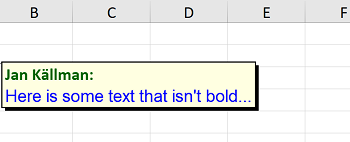
You can also edit comments via the Comments collection on the worksheet.
using (var package = new ExcelPackage(@"c:\temp\commentstest.xlsx"))
{
    var ws = package.Workbook.Worksheets["comments"];
    // Edit Comment using the Comments collection on the worksheet
    var comment = ws.Comments["A3"];
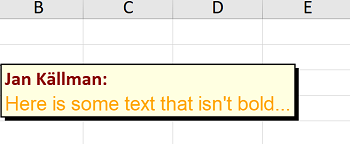
    comment.RichText[0].Color = Color.DarkRed;
    comment.RichText[1].Color = Color.Orange;
    package.Save();
}
Using package As New ExcelPackage("c:\temp\commentstest.xlsx")
    Dim ws = package.Workbook.Worksheets("comments")
    ' Edit Comment using the Comments collection on the worksheet
    Dim comment = ws.Comments("A3")
    comment.RichText(0).Color = Color.DarkRed
    comment.RichText(1).Color = Color.Orange
    package.Save()
End Using
Deleting a comment
The code below is using the workbook that was created in the Add new comments section above.