LoadFromDictionaries
This method loads data from a collection of IDictionary<string, object> or ExpandoObject (which implements the IDictionary<string, object> interface) into a spreadsheet.
The LoadFromDictionaries method is available from version 5.2.1 and higher. You can see this method in action in our Blazor sample
Basic usage
The main purpose of this method is to support IEnumerables<ExpandoObject>, so that it what we will use in these examples. But you can also create your own dictionaries to load the data.
First, let us create a list of System.Dynamic.ExpandoObject:
' With Option Strict On, late binding (dynamic) is not allowed, so the
' ExpandoObject is populated via its IDictionary(Of String, Object) interface.
Dim o1 As New ExpandoObject()
Dim d1 = CType(o1, IDictionary(Of String, Object))
d1("Id") = 1
d1("Name") = "TestName 1"
d1("Number") = 10
Dim o2 As New ExpandoObject()
Dim d2 = CType(o2, IDictionary(Of String, Object))
d2("Id") = 2
d2("Name") = "TestName 2"
d2("Number") = 20
Dim items = New List(Of ExpandoObject)() From {
    o1,
    o2
}
Now we can import these objects to a spreadsheet using the LoadFromDictionaries method.
Headers
By supplying the parameter PrintHeaders to the LoadFromDictionaries method you can add headers to the first row above the data. EPPlus will use the property names/Dictionary keys as header names.
The default behaviour is that underscores in the keys will be replaced by a space, the header for a key named "First_name" will be "First name". You can change the behaviour by setting the HeaderParsingType on the parameters as below:
TableStyle
If you supply the parameter TableStyle EPPlus will create a table for the data in the worksheet. The TableStyles enum contains over 60 different table styles to choose from.
Transpose
You can transpose the data from a dictionary by setting the Transpose property in LoadFromDictionariesParams.
Filtering keys
If you supply the Keys argument only properties/values matching those keys will be included.
using (var package = new ExcelPackage())
{
    var sheet = package.Workbook.Worksheets.Add("test");
    sheet.Cells["A1"].LoadFromDictionaries(_items, false, TableStyles.None, new string[] { "Name", "Number" });
    // alternatively
    sheet.Cells["A1"].LoadFromDictionaries(items, c =>
            {
                // SetKeys takes a params string[] - you can add any number of
                // keys as arguments to this function.
                c.SetKeys("Name", "Number");
            });
}
Using package As New ExcelPackage()
    Dim sheet = package.Workbook.Worksheets.Add("test")
    sheet.Cells("A1").LoadFromDictionaries(_items, False, TableStyles.None, New String() {"Name", "Number"})
    ' alternatively
    sheet.Cells("A1").LoadFromDictionaries(items, Sub(c)
                                                      ' SetKeys takes a params string[] - you can add any number of
                                                      ' keys as arguments to this function.
                                                      c.SetKeys("Name", "Number")
                                                  End Sub)
End Using
Only the Name and Number properties will be imported to the spreadsheet, Id will be excluded.
Load data from json
This method is useful for loading json data into a spreadsheet. Let's assume that we have this file - astronauts.json - with json data:
[
  {
    "Id": 1,
    "FirstName": "Bob",
    "LastName": "Behnken",
    "LastSpaceFlight" :  "2020-05-30T19:22:45"
  },
  {
    "Id": 2,
    "FirstName": "Doug",
    "LastName": "Hurley",
    "LastSpaceFlight": "2020-05-30T19:22:45"
  },
  {
    "Id": 3,
    "FirstName": "Neil",
    "LastName": "Armstrong",
    "LastSpaceFlight": "1969-07-16T13:32:00"
  }
]
// read the file content and deserialize with Json.NET
var jsonString = File.ReadAllText(@"c:\astronauts.json");
var jsonItems = JsonConvert.DeserializeObject<IEnumerable<ExpandoObject>>(jsonString);

// create workbook, import the data and save it
var excelFile = new FileInfo(@"c:\astronauts.xlsx");
using (var package = new ExcelPackage(excelFile)))
{
    var sheet = package.Workbook.Worksheets.Add("Astronauts");
    sheet.Cells["A1"].LoadFromDictionaries(jsonItems, c =>
    {
        // Print headers using the property names
        c.PrintHeaders = true;
        // insert a space before each capital letter in the header
        c.HeaderParsingType = HeaderParsingTypes.CamelCaseToSpace;
        // when TableStyle is not TableStyles.None the data will be loaded into a table with the
        // selected style.
        c.TableStyle = TableStyles.Medium1;
    });
    sheet.Cells["D:D"].Style.Numberformat.Format = "yyyy-mm-dd";
    sheet.Cells[1, 1, sheet.Dimension.End.Row, sheet.Dimension.End.Column].AutoFitColumns();
    package.Save();
}
' read the file content and deserialize with Json.NET
Dim jsonString = File.ReadAllText("c:\astronauts.json")
Dim jsonItems = JsonConvert.DeserializeObject(Of IEnumerable(Of ExpandoObject))(jsonString)

' create workbook, import the data and save it
Dim excelFile = New FileInfo("c:\astronauts.xlsx")
Using package As New ExcelPackage(excelFile)
    Dim sheet = package.Workbook.Worksheets.Add("Astronauts")
    sheet.Cells("A1").LoadFromDictionaries(jsonItems, Sub(c)
                                                          ' Print headers using the property names
                                                          c.PrintHeaders = True
                                                          ' insert a space before each capital letter in the header
                                                          c.HeaderParsingType = HeaderParsingTypes.CamelCaseToSpace
                                                          ' when TableStyle is not TableStyles.None the data will be loaded into a table with the
                                                          ' selected style.
                                                          c.TableStyle = TableStyles.Medium1
                                                      End Sub)
    sheet.Cells("D:D").Style.Numberformat.Format = "yyyy-mm-dd"
    sheet.Cells(1, 1, sheet.Dimension.End.Row, sheet.Dimension.End.Column).AutoFitColumns()
    package.Save()
End Using
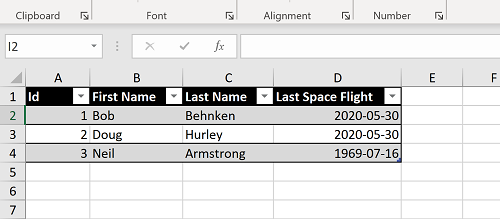
The resulting worksheet will look like this: