LoadFromDataTable
This method loads a System.Data.DataTable into a spreadshet.
Basic usage
A DataTable can be filled with data from various sources, often a database. In this simple example we will create it and fill it ourselves.
var table = new DataTable("Astronaut");
table.Columns.Add("Id", typeof(int));
table.Columns.Add("FirstName", typeof(string));
table.Columns.Add("LastName", typeof(string));
// add some data
table.Rows.Add(1, "Bob", "Behnken");
table.Rows.Add(2, "Doug", "Hurley");

//create a workbook with a spreadsheet and load the data table
using(var package = new ExcelPackage())
{
    var sheet = package.Workbook.Worksheets.Add("Astronauts");
    var filledRange = sheet.Cells["A1"].LoadFromDataTable(table);
}
Dim table = New DataTable("Astronaut")
table.Columns.Add("Id", GetType(Integer))
table.Columns.Add("FirstName", GetType(String))
table.Columns.Add("LastName", GetType(String))
' add some data
table.Rows.Add(1, "Bob", "Behnken")
table.Rows.Add(2, "Doug", "Hurley")

'create a workbook with a spreadsheet and load the data table
Using package As New ExcelPackage()
    Dim sheet = package.Workbook.Worksheets.Add("Astronauts")
    Dim filledRange = sheet.Cells("A1").LoadFromDataTable(table)
End Using
This will set the value of cell A1 to 1, B1 to "Bob" and C1 to "Behnken". A2 to 2, B2 to "Doug" and C2 to "Hurley". The return value is the resulting range, containing the added data.
The order of the columns on the worksheet will be the same as in the supplied DataTable. You can re-order the columns by using the DataColumn.SetOrdinal method:
Headers
By supplying the parameter PrintHeaders to the LoadFromDataSet method you can add headers to the first row above the data.
EPPlus uses the Caption property of the DataColumn's of the DataTable to set the headers. Per default these will be the column names set when the DataTable was created, but you can change the caption to any value, see below (using the example above):
TableStyle
If you supply the parameter TableStyle EPPlus will create a table for the data in the worksheet. The TableStyles enum contains over 60 different table styles to choose from.
var filledRange = sheet.Cells["A1"].LoadFromDataTable(table, true, TableStyles.Dark1);
// if you want access to the created table in the sheet
var excelTable = sheet.Tables.GetFromRange(filledRange);
// alternatively from version 5.2.1 or higher
sheet.Cells["A1"].LoadFromDataTable(table, c =>
{
c.PrintHeaders = true;
c.TableStyle = TableStyles.Dark1;
});
Dim filledRange = sheet.Cells("A1").LoadFromDataTable(table, True, TableStyles.Dark1)
' if you want access to the created table in the sheet
Dim excelTable = sheet.Tables.GetFromRange(filledRange)
' alternatively from version 5.2.1 or higher
sheet.Cells("A1").LoadFromDataTable(table, Sub(c)
c.PrintHeaders = True
c.TableStyle = TableStyles.Dark1
End Sub)
Transpose
If you supply the parameter Transpose EPPlus will transpose the data in the worksheet.
Import XML with System.Data.DataSet
You can use this method to import XML data to a spreadsheet.
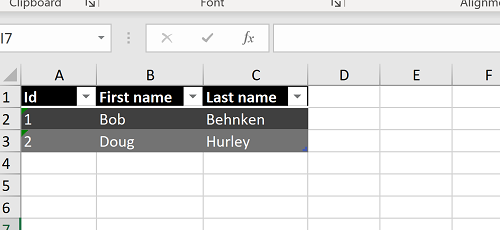
Content of astronauts.xml:
<?xml version="1.0" encoding="utf-8"?>
<Astronauts>
<Astronaut Id="1">
<FirstName>Bob</FirstName>
<LastName>Behnken</LastName>
</Astronaut>
<Astronaut Id="2">
<FirstName>Doug</FirstName>
<LastName>Hurley</LastName>
</Astronaut>
</Astronauts>
var dataSet = new DataSet();
var xml = File.ReadAllText(@"c:\Temp\astronauts.xml");
var reader = XmlReader.Create(new StringReader(xml));
dataSet.ReadXml(reader);
using(var package = new ExcelPackage())
{
var sheet = package.Workbook.Worksheets.Add("test");
var table = dataSet.Tables["Astronaut"];
// default the Id ends up last in the column order. This moves it to the first position.
table.Columns["Id"].SetOrdinal(0);
// Set caption for the headers
table.Columns["FirstName"].Caption = "First name";
table.Columns["LastName"].Caption = "Last name";
// call LoadFromDataTable, print headers and use the Dark1 table style
sheet.Cells["A1"].LoadFromDataTable(table, true, TableStyles.Dark1);
// AutoFit column with for the entire range
sheet.Cells[1, 1, sheet.Dimension.End.Row, sheet.Dimension.End.Row].AutoFitColumns();
package.SaveAs(new FileInfo(@"c:\temp\astronauts.xlsx"));
}
Dim dataSet As New DataSet()
Dim xml = File.ReadAllText("c:\Temp\astronauts.xml")
Dim reader = XmlReader.Create(New StringReader(xml))
dataSet.ReadXml(reader)
Using package As New ExcelPackage()
Dim sheet = package.Workbook.Worksheets.Add("test")
Dim table = dataSet.Tables("Astronaut")
' default the Id ends up last in the column order. This moves it to the first position.
table.Columns("Id").SetOrdinal(0)
' Set caption for the headers
table.Columns("FirstName").Caption = "First name"
table.Columns("LastName").Caption = "Last name"
' call LoadFromDataTable, print headers and use the Dark1 table style
sheet.Cells("A1").LoadFromDataTable(table, True, TableStyles.Dark1)
' AutoFit column with for the entire range
sheet.Cells(1, 1, sheet.Dimension.End.Row, sheet.Dimension.End.Row).AutoFitColumns()
package.SaveAs(New FileInfo("c:\temp\astronauts.xlsx"))
End Using
This results in the following worksheet: