Conditional formatting
Conditional formatting is a feature that sets various styling on cells/ranges based on their values. It is accessible via the ConditionalFormatting property of the ExcelWorksheet class or via ranges. EPPlus supports 45 different types of conditional formatting and provides a strongly typed interface for each type.
Add conditional formatting
On the ConditionalFormatting property of worksheets/ranges you will find a number of methods starting with "Add" followed by the type of Conditional formatting you want to use.
Basic example
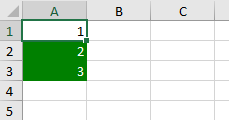
Here is a simple example where we add a GreaterThan rule, using the ConditionalFormatting.AddGreaterThan() method. Cells with a higher value than 1 will get green background with white font color.
sheet.Cells["A1"].Value = 1;
sheet.Cells["A2"].Value = 2;
sheet.Cells["A3"].Value = 3;

var cf = sheet.ConditionalFormatting.AddGreaterThan(sheet.Cells["A1:A3"]);
// alternatively:
//var cf = sheet.Cells["A1:A3"].ConditionalFormatting.AddGreaterThan();
cf.Formula = "1";
cf.Style.Fill.BackgroundColor.SetColor(Color.Green);
cf.Style.Font.Color.SetColor(Color.White);
sheet.Cells("A1").Value = 1
sheet.Cells("A2").Value = 2
sheet.Cells("A3").Value = 3

Dim cf = sheet.ConditionalFormatting.AddGreaterThan(sheet.Cells("A1:A3"))
' alternatively:
'Dim cf = sheet.Cells("A1:A3").ConditionalFormatting.AddGreaterThan()
cf.Formula = "1"
cf.Style.Fill.BackgroundColor.SetColor(Color.Green)
cf.Style.Font.Color.SetColor(Color.White)
Result:
More examples
Here are some more examples of various types of Conditional Formatting. - Three Color Scale - Three Icon Set - Databars
Here are some examples and info only applicable from epplus 7.0 forward: * Custom Iconsets Example * Advanced Color Options Example * Priority Example * Order In the worksheet on Load * Specific-Text-Formulas
Read/edit conditional formatting
To get a the specific typed conditional formatting rule from the ConditionalFormatting collection use the As property of the base class. You can then change the values of the properties of casted object.
Example:
if(worksheet.ConditionalFormatting[0].Type==eExcelConditionalFormattingRuleType.ThreeIconSet)
{
    var iconRule = worksheet.ConditionalFormatting[0].As.ThreeIconSet; //Type cast the rule as an iconset rule.
    //Do something with the iconRule...
}
if (worksheet.ConditionalFormatting[1].Type == eExcelConditionalFormattingRuleType.DataBar)
{
    var dataBarRule = worksheet.ConditionalFormatting[1].As.DataBar; //Type cast the rule as an iconset rule.
    //Do something with the databarRule...
}
If worksheet.ConditionalFormatting(0).Type = eExcelConditionalFormattingRuleType.ThreeIconSet Then
    Dim iconRule = worksheet.ConditionalFormatting(0).As.ThreeIconSet 'Type cast the rule as an iconset rule.
    'Do something with the iconRule...
End If
If worksheet.ConditionalFormatting(1).Type = eExcelConditionalFormattingRuleType.DataBar Then
    Dim dataBarRule = worksheet.ConditionalFormatting(1).As.DataBar 'Type cast the rule as an iconset rule.
    'Do something with the databarRule...
End If
Remove conditional formatting
Use the following methods which are available on the ConditionalFormatting property on worksheets or ranges.
| Method | Description |
|---|---|
Remove(IExcelConditionalFormattingRule item) |
Removes the item from the collection |
RemoveAll |
Removes all items from the collection |
RemoveAt(int index) |
Removes an item by its 0-based index |
RemoveByPriority(int priority) |
Removes a conditional formatting by its priority |
See also
More extensive examples are available in our sample projects, see Sample 3.2-C# and Sample 3.2-VB