Shapes
EPPlus supports adding 187 different types of shapes (defined by the eShapeStyle enum) with multiple ways of formatting.
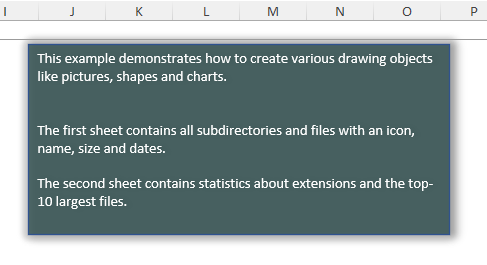
Example 1 - add a textbox
var shape = ws.Drawings.AddShape("txtDesc", eShapeStyle.Rect);
shape.SetPosition(1, 5, 6, 5);  //Position Row, RowOffsetPixels, Column, ColumnOffsetPixels
shape.SetSize(400, 200);        //Size in pixels
shape.EditAs = eEditAs.Absolute;
shape.Text = "This example demonstrates how to create various drawing objects like pictures, shapes and charts.\n\r\n\rThe first sheet contains all subdirectories and files with an icon, name, size and dates.\r\n\r\nThe second sheet contains statistics about extensions and the top-10 largest files.";
shape.Fill.Style = eFillStyle.SolidFill;
shape.Fill.Color = Color.DarkSlateGray;
shape.Fill.Transparancy = 20;
shape.TextAnchoring = eTextAnchoringType.Top;
shape.TextVertical = eTextVerticalType.Horizontal;
shape.TextAnchoringControl=false;

shape.Effect.SetPresetShadow(ePresetExcelShadowType.OuterRight);
shape.Effect.SetPresetGlow(ePresetExcelGlowType.Accent3_8Pt);
Dim shape = ws.Drawings.AddShape("txtDesc", eShapeStyle.Rect)
shape.SetPosition(1, 5, 6, 5)  'Position Row, RowOffsetPixels, Column, ColumnOffsetPixels
shape.SetSize(400, 200)        'Size in pixels
shape.EditAs = eEditAs.Absolute
shape.Text = "This example demonstrates how to create various drawing objects like pictures, shapes and charts." & vbLf & vbCr & vbLf & vbCr & "The first sheet contains all subdirectories and files with an icon, name, size and dates." & vbCrLf & vbCrLf & "The second sheet contains statistics about extensions and the top-10 largest files."
shape.Fill.Style = eFillStyle.SolidFill
shape.Fill.Color = Color.DarkSlateGray
shape.Fill.Transparancy = 20
shape.TextAnchoring = eTextAnchoringType.Top
shape.TextVertical = eTextVerticalType.Horizontal
shape.TextAnchoringControl = False

shape.Effect.SetPresetShadow(ePresetExcelShadowType.OuterRight)
shape.Effect.SetPresetGlow(ePresetExcelGlowType.Accent3_8Pt)
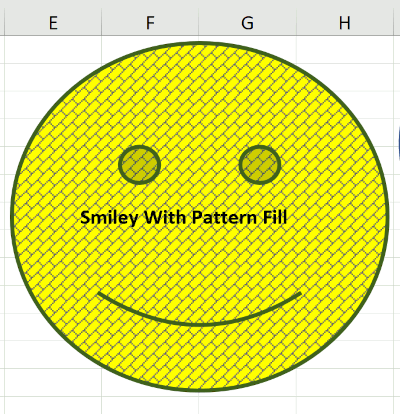
Example 2 - add a smiley face
//Drawing with a pattern fill
var shape = worksheet.Drawings.AddShape("PatternFill", eShapeStyle.SmileyFace);
shape.SetPosition(0, 5, 4, 5);
shape.SetSize(250, 250);
shape.Fill.Style = eFillStyle.PatternFill;
shape.Fill.PatternFill.PatternType = eFillPatternStyle.DiagBrick;
shape.Fill.PatternFill.BackgroundColor.SetPresetColor(ePresetColor.Yellow);
shape.Fill.PatternFill.ForegroundColor.SetSystemColor(eSystemColor.GrayText);
shape.Border.Width = 2;
shape.Border.Fill.Style = eFillStyle.SolidFill;
shape.Border.Fill.SolidFill.Color.SetHslColor(90, 50, 25);
shape.Font.Fill.Color = Color.Black;
shape.Font.Bold = true;
shape.Text = "Smiley With Pattern Fill";
'Drawing with a pattern fill
Dim shape = worksheet.Drawings.AddShape("PatternFill", eShapeStyle.SmileyFace)
shape.SetPosition(0, 5, 4, 5)
shape.SetSize(250, 250)
shape.Fill.Style = eFillStyle.PatternFill
shape.Fill.PatternFill.PatternType = eFillPatternStyle.DiagBrick
shape.Fill.PatternFill.BackgroundColor.SetPresetColor(ePresetColor.Yellow)
shape.Fill.PatternFill.ForegroundColor.SetSystemColor(eSystemColor.GrayText)
shape.Border.Width = 2
shape.Border.Fill.Style = eFillStyle.SolidFill
shape.Border.Fill.SolidFill.Color.SetHslColor(90, 50, 25)
shape.Font.Fill.Color = Color.Black
shape.Font.Bold = True
shape.Text = "Smiley With Pattern Fill"
Read existing shapes
The Drawings collection can contain different types of objects (beside Shapes it might also contain Pictures, Charts and Form Controls).Here is how you can filter out the Shapes for a worksheet and cast them to the specialized ExcelShape type:
Re-arrange vertically
As with any other Drawing you can use the SendToBack and BringToFront methods to adjust how a Shape is located vertically compared with other Drawings.
Remove a Shape
You can remove a shape from a worksheet via the Drawings.Remove method.
Manipulate Adjustment Points
As of EPPlus 8, you can now manipulate adjustment points. Adjustment Points are the yellow dots as illustrated in the image below.
Different shapes have a different amount of adjustment points, names and values. Values usually vary between 0 and 100000.
var arrow = worksheet.Drawings.AddShape("Arrow1", eShapeStyle.UpArrow);
//Get available adjustment points.
var adjustmentPointsNames = arrow.GetAdjustmentPointsNames();
//Set new adjustment point values.
arrow.SetAdjustmentPoint(adjustmentPointsNames[0], 50000);
arrow.SetAdjustmentPoint(adjustmentPointsNames[1], 32000);
Dim arrow = worksheet.Drawings.AddShape("Arrow1", eShapeStyle.UpArrow)
'Get available adjustment points.
Dim adjustmentPointsNames = arrow.GetAdjustmentPointsNames()
'Set new adjustment point values.
arrow.SetAdjustmentPoint(adjustmentPointsNames(0), 50000)
arrow.SetAdjustmentPoint(adjustmentPointsNames(1), 32000)