Tables
Tables can be created via the Tables property in the ExcelWorksheet class. EPPlus has 60 built in table styles to choose from and many parameters to configure the appearence of the table. From EPPlus 5.6 you can also create and modify custom table styles.
Add a table to a worksheet
Here is an example that will help you getting started with Excel Tables.
using(var package = new ExcelPackage(file))
{
    var sheet = package.Workbook.Worksheets.Add("Tables");

    // headers
    sheet.Cells["A1"].Value = "Month";
    sheet.Cells["B1"].Value = "Sales";
    sheet.Cells["C1"].Value = "VAT";
    sheet.Cells["D1"].Value = "Total";

    // Fill the table range with some data...
    var rnd = new Random();
    for (var row = 2; row < 12; row++)
    {
        sheet.Cells[row, 1].Value = new DateTimeFormatInfo().GetMonthName(row);
        sheet.Cells[row, 2].Value = rnd.Next(10000, 100000);
        sheet.Cells[row, 3].Formula = $"B{row} * 0.25";
        sheet.Cells[row, 4].Formula = $"B{row} + C{row}";
    }
    sheet.Cells["B2:D13"].Style.Numberformat.Format = "€#,##0.00";

    // Table range including header row
    var range = sheet.Cells["A1:D11"];

    // create the table
    var table = sheet.Tables.Add(range, "myTable");
    // configure the table
    table.ShowHeader = true;
    table.ShowFirstColumn = true;
    table.TableStyle = TableStyles.Dark2;
    // add a totals row under the data
    table.ShowTotal = true;
    table.Columns[1].TotalsRowFunction = RowFunctions.Sum;
    table.Columns[2].TotalsRowFunction = RowFunctions.Sum;
    table.Columns[3].TotalsRowFunction = RowFunctions.Sum;

    // Calculate all the formulas including the totals row.
    // This will give input to the AutofitColumns call
    range.Calculate();
    range.AutoFitColumns();

    package.Save();
}
Using package As New ExcelPackage(file)
    Dim sheet = package.Workbook.Worksheets.Add("Tables")

    ' headers
    sheet.Cells("A1").Value = "Month"
    sheet.Cells("B1").Value = "Sales"
    sheet.Cells("C1").Value = "VAT"
    sheet.Cells("D1").Value = "Total"

    ' Fill the table range with some data...
    Dim rnd As New Random()
    For row As Integer = 2 To 11
        sheet.Cells(row, 1).Value = New DateTimeFormatInfo().GetMonthName(row)
        sheet.Cells(row, 2).Value = rnd.Next(10000, 100000)
        sheet.Cells(row, 3).Formula = $"B{row} * 0.25"
        sheet.Cells(row, 4).Formula = $"B{row} + C{row}"
    Next
    sheet.Cells("B2:D13").Style.Numberformat.Format = "€#,##0.00"

    ' Table range including header row
    Dim range = sheet.Cells("A1:D11")

    ' create the table
    Dim table = sheet.Tables.Add(range, "myTable")
    ' configure the table
    table.ShowHeader = True
    table.ShowFirstColumn = True
    table.TableStyle = TableStyles.Dark2
    ' add a totals row under the data
    table.ShowTotal = True
    table.Columns(1).TotalsRowFunction = RowFunctions.Sum
    table.Columns(2).TotalsRowFunction = RowFunctions.Sum
    table.Columns(3).TotalsRowFunction = RowFunctions.Sum

    ' Calculate all the formulas including the totals row.
    ' This will give input to the AutofitColumns call
    range.Calculate()
    range.AutoFitColumns()

    package.Save()
End Using
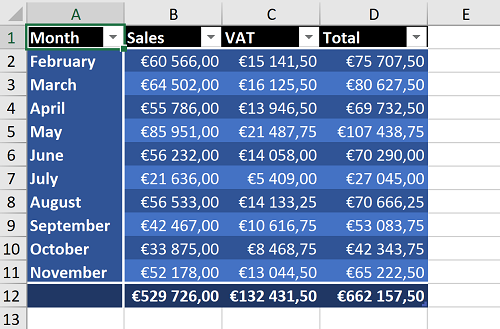
This will result in the following table
Change an existing table
using(var package = new ExcelPackage(file))
{
    var sheet = package.Workbook.Worksheets["Tables"];
    // get a table by its name and change properties
    var myTable = sheet.Tables["myTable"];
    myTable.ShowFirstColumn = false;
    myTable.ShowLastColumn = true;
    myTable.TableStyle = TableStyles.Medium8;

    package.Save();
}
Using package As New ExcelPackage(file)
    Dim sheet = package.Workbook.Worksheets("Tables")
    ' get a table by its name and change properties
    Dim myTable = sheet.Tables("myTable")
    myTable.ShowFirstColumn = False
    myTable.ShowLastColumn = True
    myTable.TableStyle = TableStyles.Medium8

    package.Save()
End Using
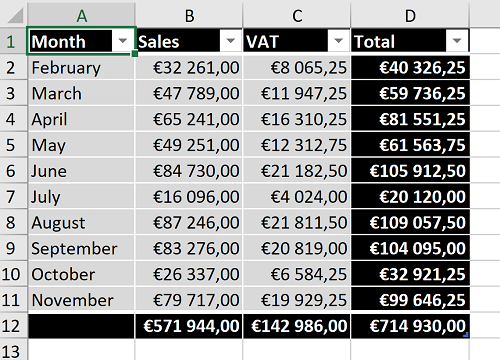
This will result in the following table
Insert rows/cols
From EPPlus 5 you can add rows/cols to an existing table, references in affected cells will be updated/shifted. Here is an example where we add a row to an existing table.
// you can also supply number of new rows as an argument to the AddRow method
var rowRange = table.AddRow();
var newRowIx = rowRange.Start.Row;
sheet.Cells[newRowIx, 1].Value = new DateTimeFormatInfo().GetMonthName(newRowIx);
sheet.Cells[newRowIx, 2].Value = rnd.Next(10000, 100000);
sheet.Cells[newRowIx, 3].Formula = $"B{newRowIx} * 0.25";
sheet.Cells[newRowIx, 4].Formula = $"B{newRowIx} + C{newRowIx}";
rowRange.Style.Numberformat.Format = "€#,##0.00";
' you can also supply number of new rows as an argument to the AddRow method
Dim rowRange = table.AddRow()
Dim newRowIx = rowRange.Start.Row
sheet.Cells(newRowIx, 1).Value = New DateTimeFormatInfo().GetMonthName(newRowIx)
sheet.Cells(newRowIx, 2).Value = rnd.Next(10000, 100000)
sheet.Cells(newRowIx, 3).Formula = $"B{newRowIx} * 0.25"
sheet.Cells(newRowIx, 4).Formula = $"B{newRowIx} + C{newRowIx}"
rowRange.Style.Numberformat.Format = "€#,##0.00"
From version 8 you can use DataRows property to modify the rows of a table.
Export the table data to a DataTable
You can export the data in the table range to a System.Data.DataTable. See the ToDataTable method to explore the possibilities.
This method was introduced in EPPlus 5.4.1.
Delete a table
The delete method (see below) also has method signatures where you can choose to delete all data in the range.
Referencing tables in formulas
See this wiki page.
See also
See Table-filters-and-slicers for more advanced usage and Built in Table styles/custom table styles to explore the table styles.
See Working with DataRows (introduced in EPPlus 8) for an easier way of modifying the rows of a table.
See External connections & query tables (introduced in EPPlus 8.3) for using query table with an external connection as source.
See sample 4.1, 7.1 and 7.3 in the sample project Sample-C# or Sample-VB.